
Text Diff
A text diff highlights the changes required to transform one text file into another.
Layout
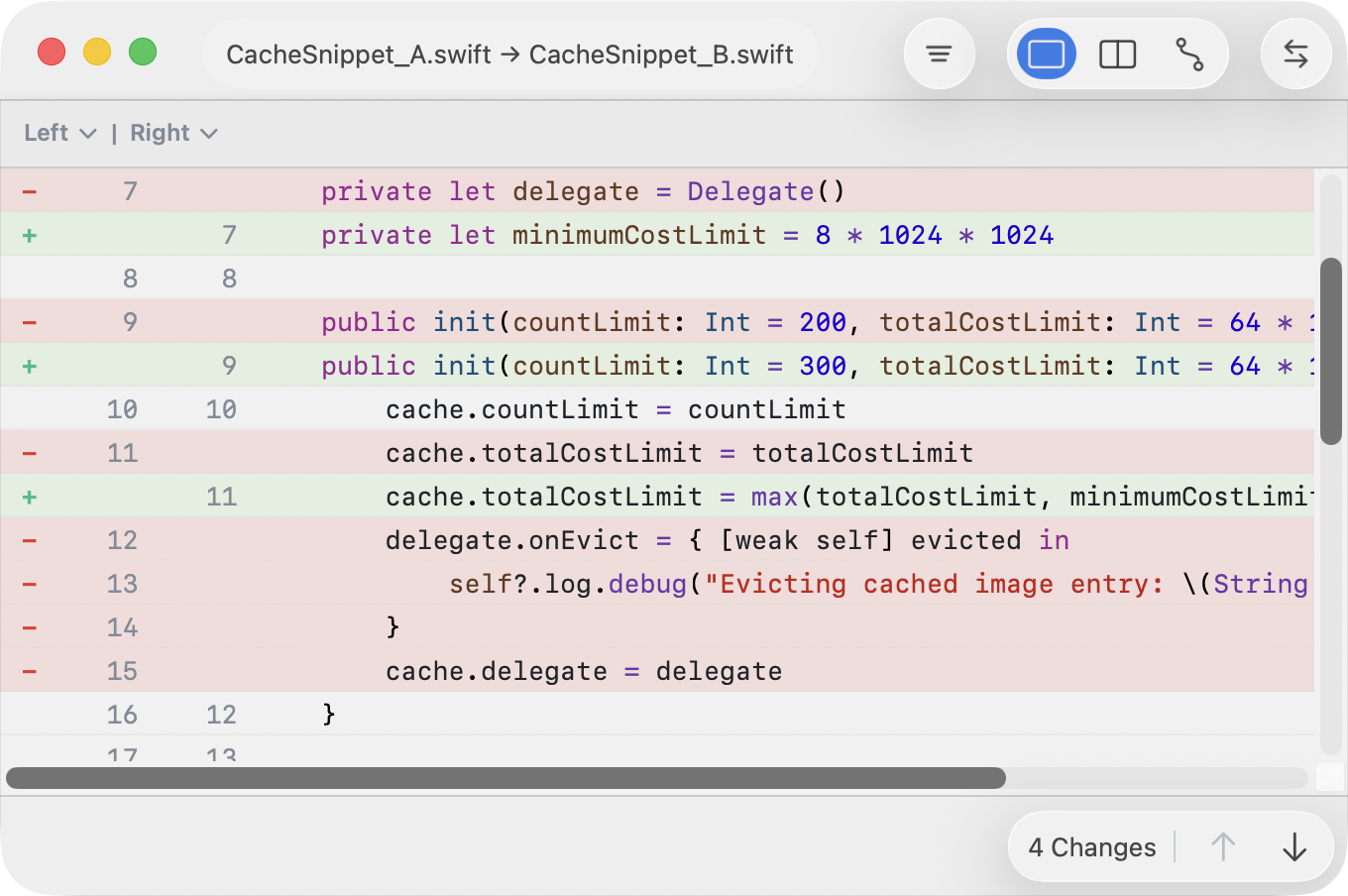
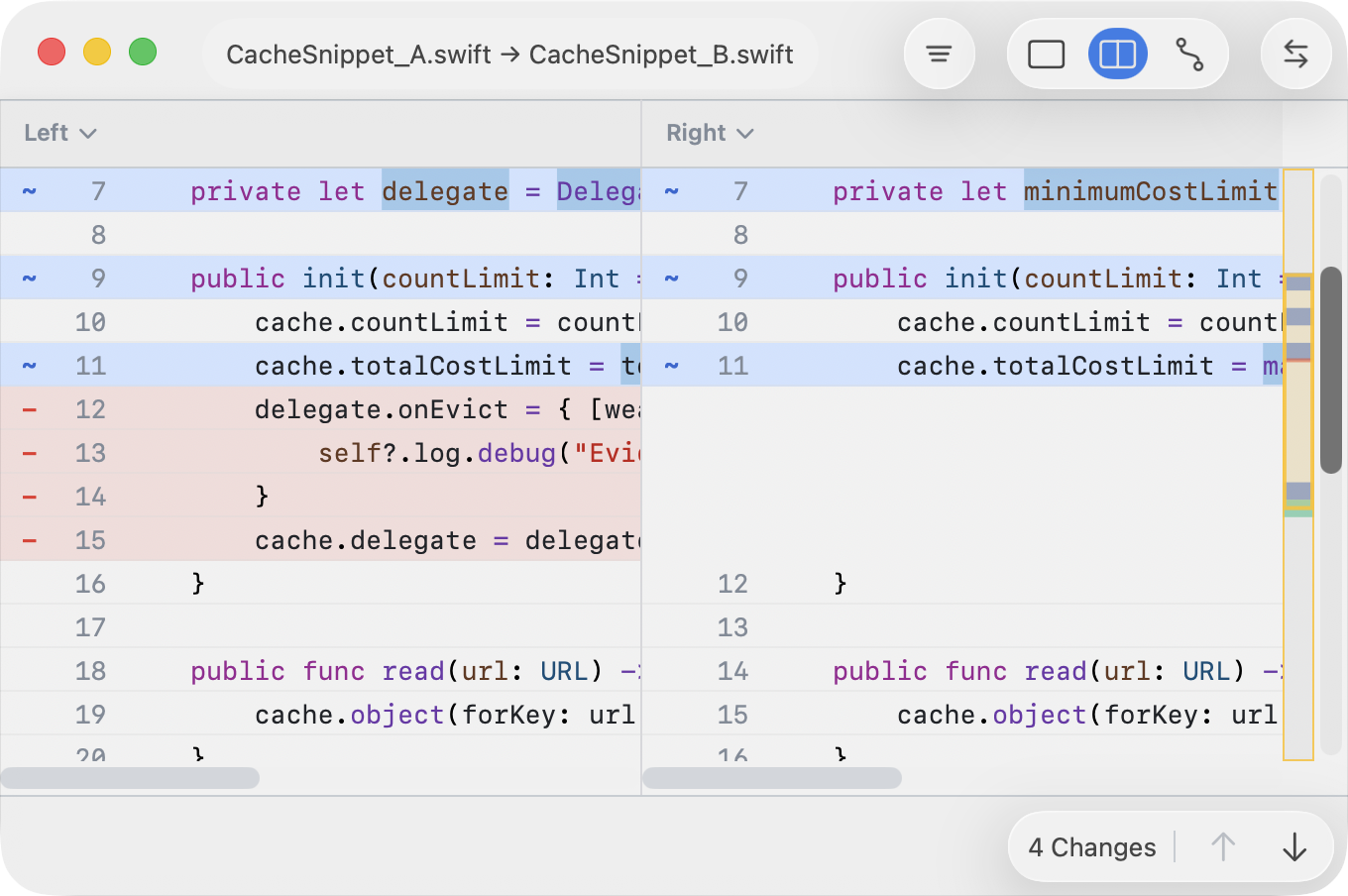
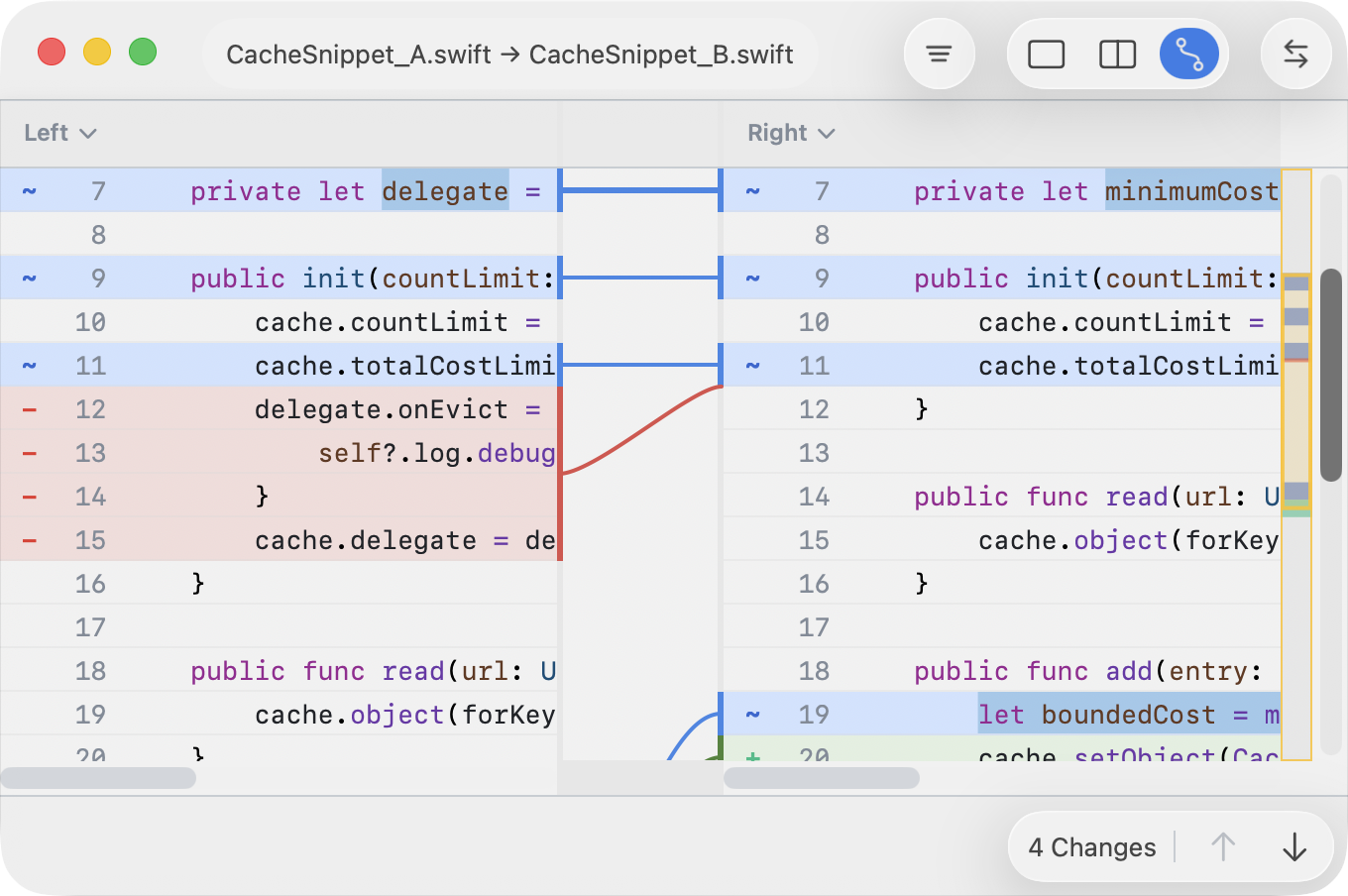
There are three layouts:
- Unified View shows a single combined view of changes.
- Two-Pane Layout shows Left and Right side by side.
- Two-Pane Layout with Connectors adds connectors between related changes.
To switch between them use the View menu or the segmented control (top right).
Layout Coloring
- Lines are colored green, red, and blue to indicate additions, deletions, and modifications. Changed words within a line are highlighted with higher saturation.
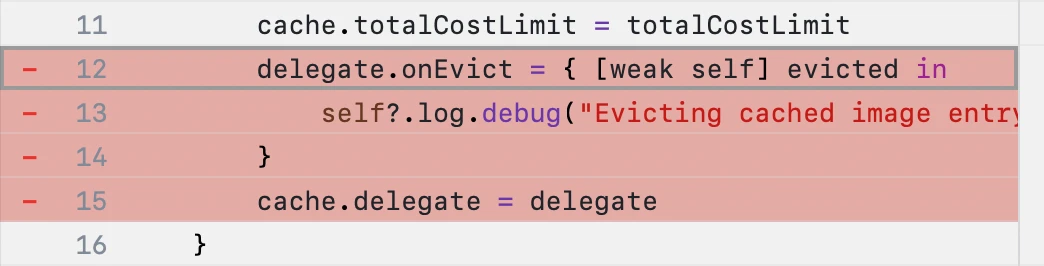
- A hunk is a contiguous colored block indicating the same operation (add, delete, or modify) across multiple lines.
- A selected line is indicated with a gray rectangle. This selection can be move using the keyboard arrows, or extended pressing shift + arrows.
Editing
These actions are available from the menubar, right click menu, or using keyboard shortcuts.
- To copy a hunk move the selection line to a hunk and press ⌘⇧ + right/left arrow.
- To copy a line press ⌘ + right/left arrow.
- To edit a line double click, press enter, or Edit ▸ Edit Current Line.
- To extend the selection press ⇧⌘ + up/down arrow.
- To persist changes use File ▸ Save ⌘S, or File ▸ Save as Patch ⇧⌘S.
A patch file contains the operations that transform the left
side into the right side. Patch files can later be applied using
patch left-file exported.patch.
Copy actions are not available when the selected content already matches the destination or when the selection is not on a real line –for instance, an alignment placeholder row.
View Options
Text diff exposes options that change how the comparison is computed or displayed. These options are available in the Funnel button (top right).
- Ignore Patterns help suppress noise (such as IDs or timestamps) during comparison.
- JSON Normalization converts the input to a canonical form to make the comparison semantically meaningful. Saving a normalized file will rewrite the input file using the normalized format.
Compare Against Git Revisions
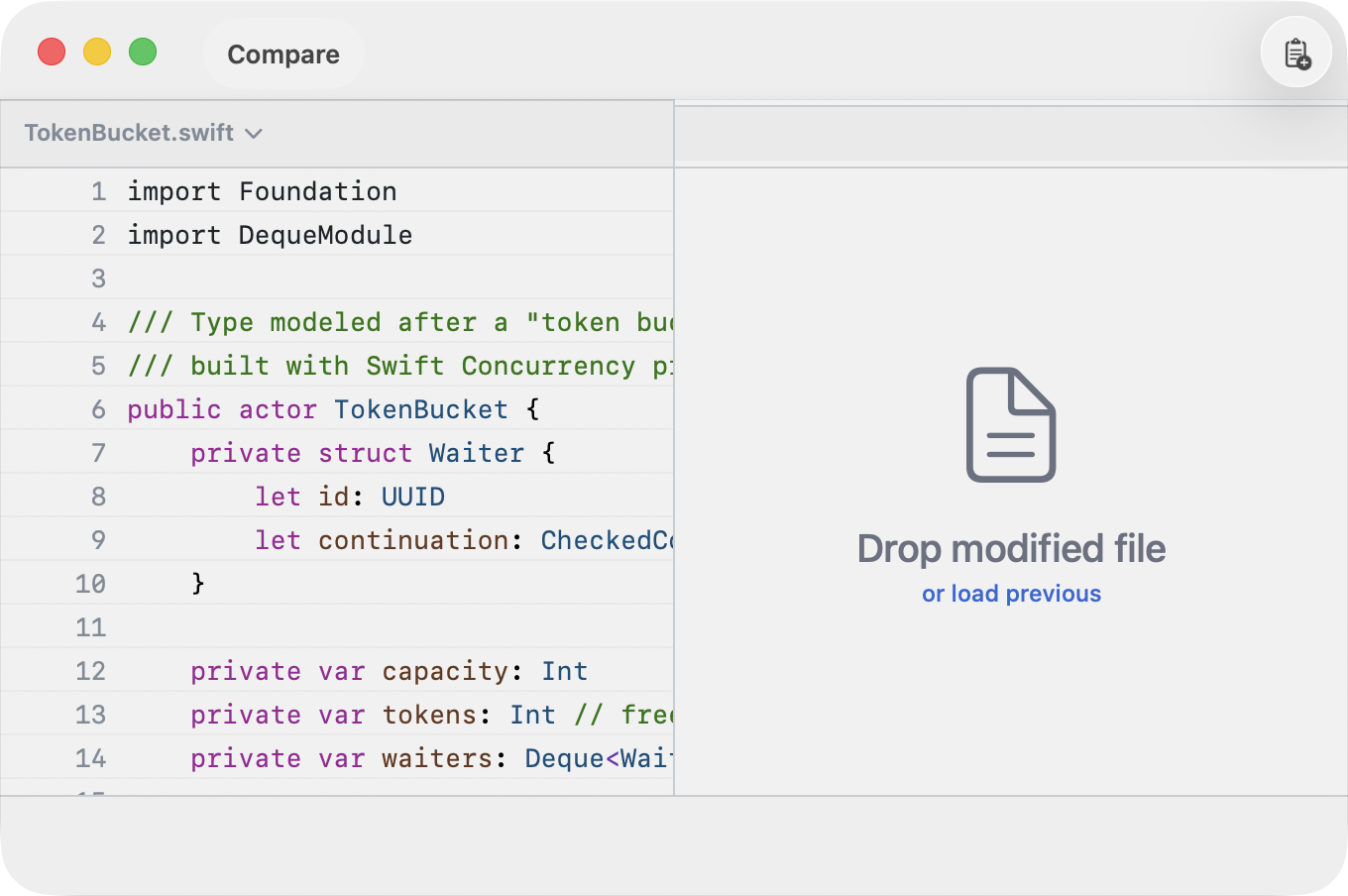
To compare a file against a previous revision choose Load previous.
When files are under version control, they display a tag that reveals their Git history.
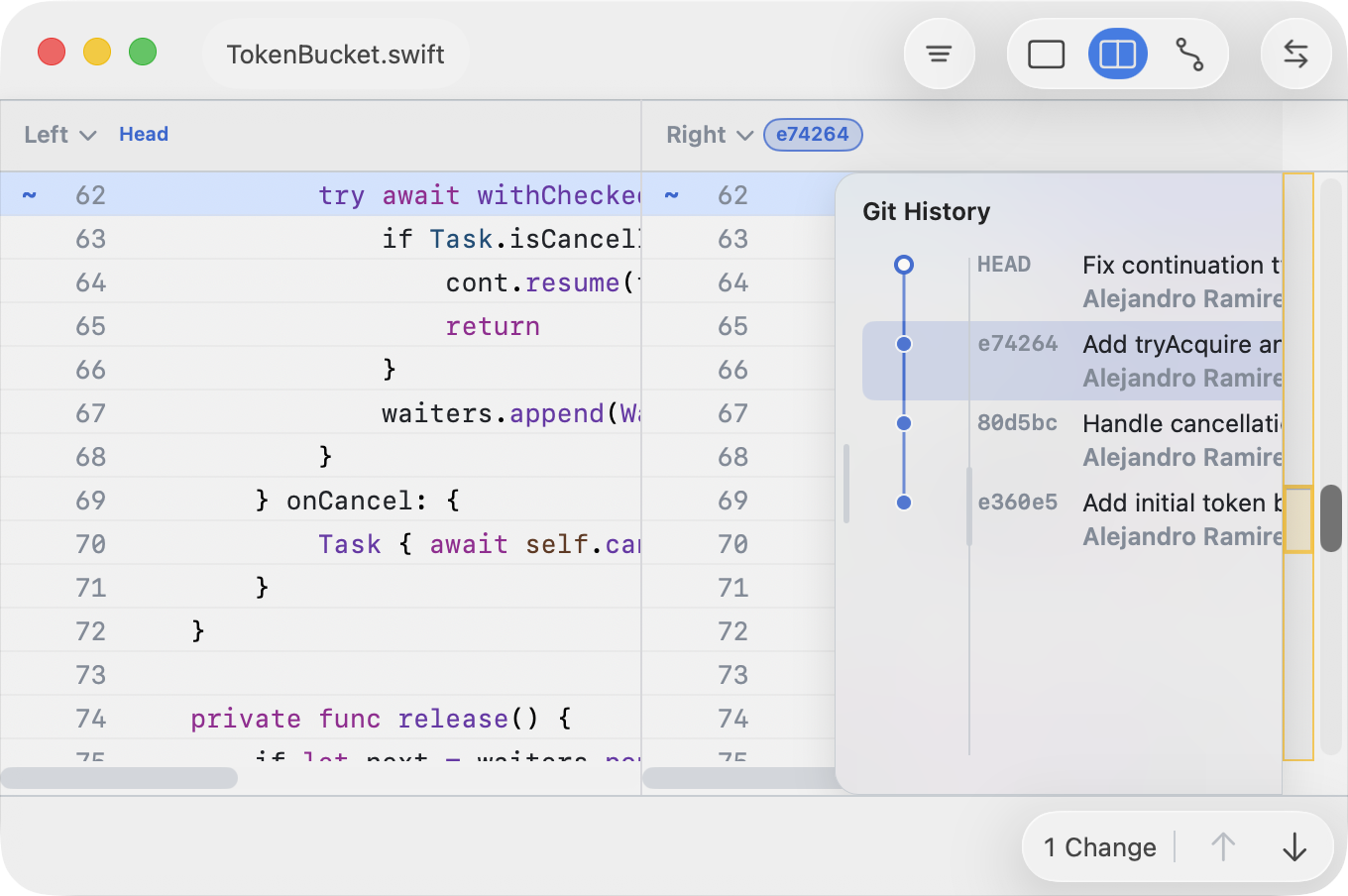
When available, the filename area shows a revision label such as:
- Working Tree (uncommitted changes)
- HEAD (current commit)
- A short commit hash (historical revision)
Use the revision control to load a different version of the file into a pane. This is useful for reviewing changes over time without leaving the comparison view. Accessing Git revisions requires explicit permission. See Settings and Disk access for App Store apps for details.
Keyboard Cheatsheet
| Action | Shortcut |
|---|---|
| Previous / next row | ↑ / ↓ |
| Jump to first / last row | ⌘↑ / ⌘↓ |
| Previous change / next change | ⌥↑ / ⌥↓ |
| Switch to other pane | ⇥ |
| Copy to right | ⌘→ |
| Copy to left | ⌘← |
| Previous / next change | ⌥↑ / ⌥↓ |
| Extend selection | ⇧↑ / ⇧↓ |
| Resolve with Ours | ⇧⌘→ |
| Resolve with Theirs | ⇧⌘← |