
Git Integration
This assumes you already installed abd.
Configuration
To configure Git in one step, run:
abd integrate gitThat is the same as running all the commands below.
git config --global merge.tool abd
git config --global mergetool.abd.trustExitCode true
git config --global mergetool.abd.cmd 'abd --base "$BASE" --local "$LOCAL" --remote "$REMOTE" --result "$MERGED"'

git config --global diff.tool abd
git config --global difftool.prompt false
git config --global difftool.abd.cmd 'abd --local "$LOCAL" --remote "$REMOTE"'
Important: add your Git repository –or any parent folder– to Settings ▸ Folder Access. This grants explicit permission to read Git information.
Usage from Git
Now we can invoke ABDiff using Git.
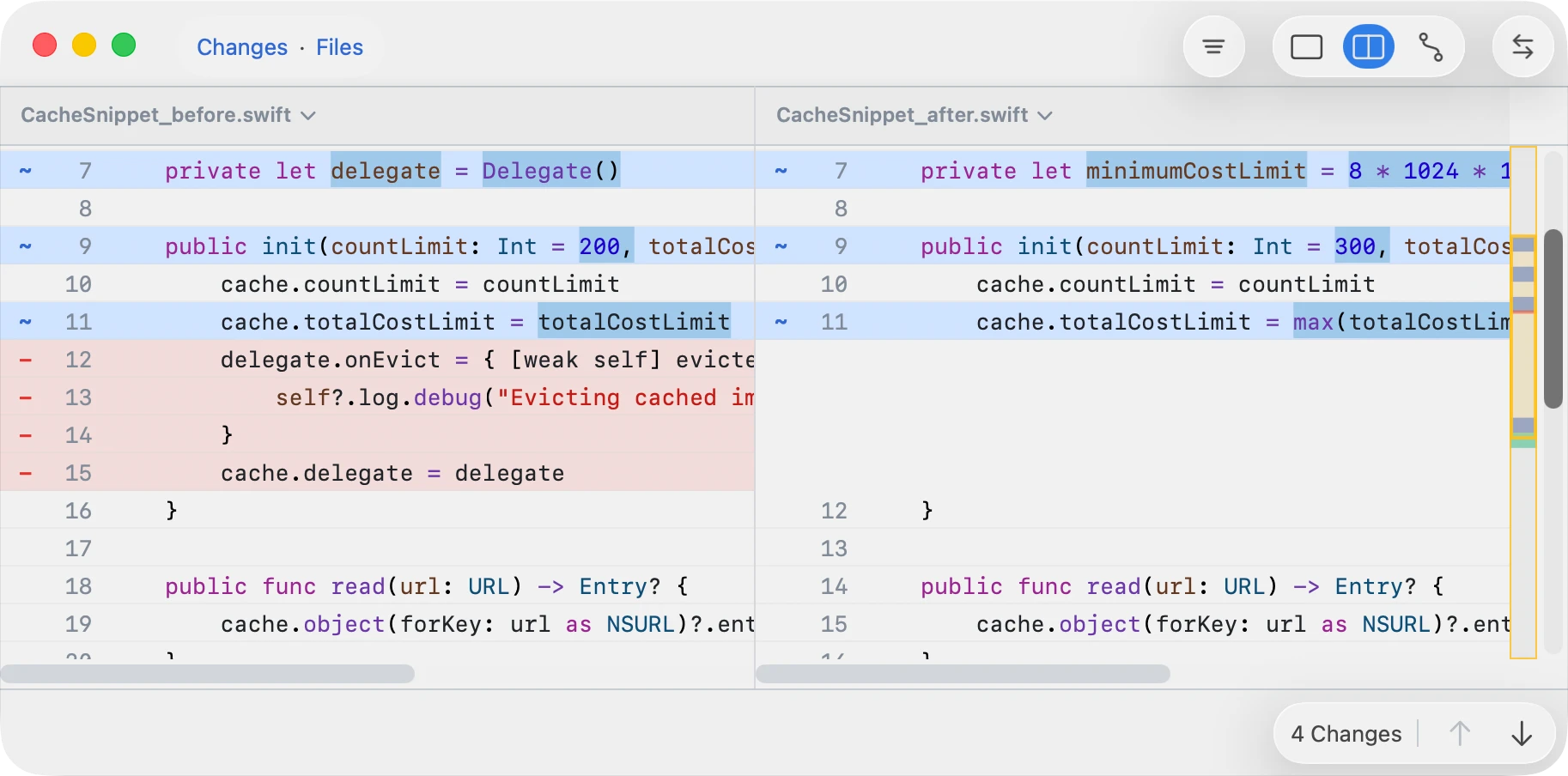
Use git difftool to review changes.
- It opens tracked file diffs one file at a time in the normal two-way diff UI.
- Closing one window prompts Git to open the next.
Use git mergetool to resolve
conflicts.
- It opens each conflict in a window one at a time.
- Closing one window prompts Git to open the next.
- The window lists all conflicts in a sidebar, plus a three-way viewer on the right –or two-way if file isn‘t text.
- In the conflicts sidebar, use Up Arrow and Down Arrow to move between files, and right-click a row for file-level resolve and info actions.
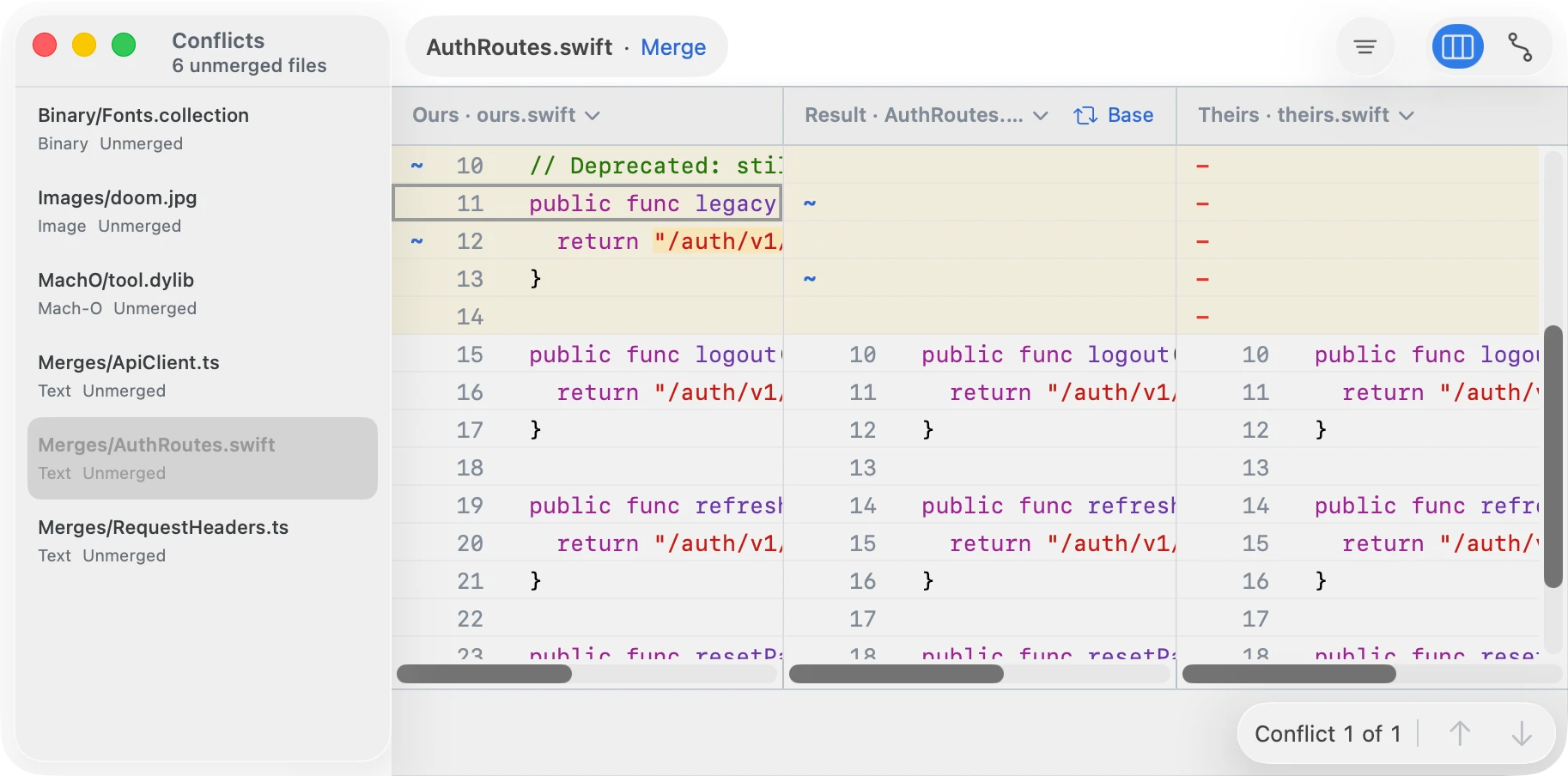
To solve a conflict, edit the file and save it. Git treats a saved result as resolved. A common way to resolve a conflict is to choose one side; right-click a conflict block to see the available actions.
Git launches the UI once per unresolved path. However, you can resolve additional conflicts from the same window, in which case Git will skip further invocations.
For the full sidebar workflow, see Conflict Sets.
Usage from abd
Use abd changeset to review changes.
Unlike git difftool, it opens a single window containing a
list of changes.
abd changeset
abd changeset /path/to/repo-or-file
abd changeset --repo /path/to/repo --left <commitA> --right <commitB>
abd changeset --left-dir <dirA> --right-dir <dirB>
With no commit refs, abd changeset compares
HEAD to the current working tree in the current repository,
or in the repository containing the optional path.
Use abd conflicts to resolve conflicts.
Unlike git mergetool, it opens the conflicts UI directly
instead of being invoked once per unresolved path. It is also useful if
abd is not configured as your mergetool.
abd conflicts
abd conflicts /path/to/repo-or-file
abd conflicts --repo /path/to/repo
Reset Configuration
To stop using ABDiff run the following:
git config --global --unset-all merge.tool
git config --global --unset-all mergetool.abd.cmd
git config --global --unset-all mergetool.abd.trustExitCode

git config --global --unset-all diff.tool
git config --global --unset-all difftool.abd.cmd
git config --global --unset-all difftool.prompt