
Hex Data Comparison
A hex diff compares binary files as bytes. ABDiff always keeps the raw hex view available, and can also show a parsed Structure view for recognized binary formats.
Ways to Start a Hex Comparison
Drag and drop
- One file opens a standalone hex viewer.
- Two files open a hex diff. More than two files use the last two.
File menu
- File ▸ Open in Hex Viewer… to open one file.
- File ▸ Open as Hex Diff… to open two files.
- File ▸ Open Current Files as Hex to open the current files as a hex diff.
Terminal
- One file:
abd --hex file - Two files:
abd --hex file1 file2
Hex Viewer Layout
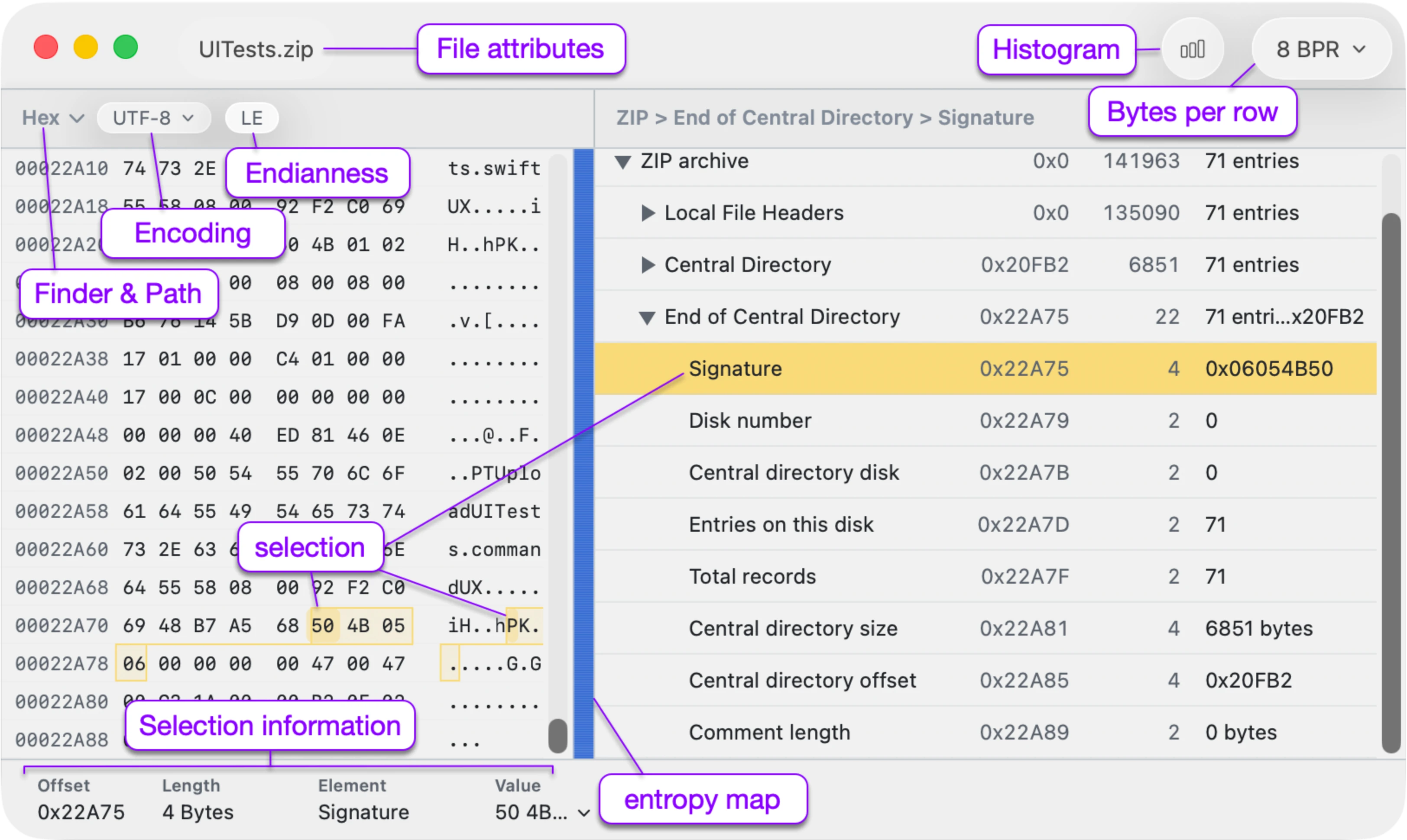
Content is, from left to right:
- Hexadecimal bytes
- Decoded text preview
- Structure tree, when available
Hex Diff Comparison
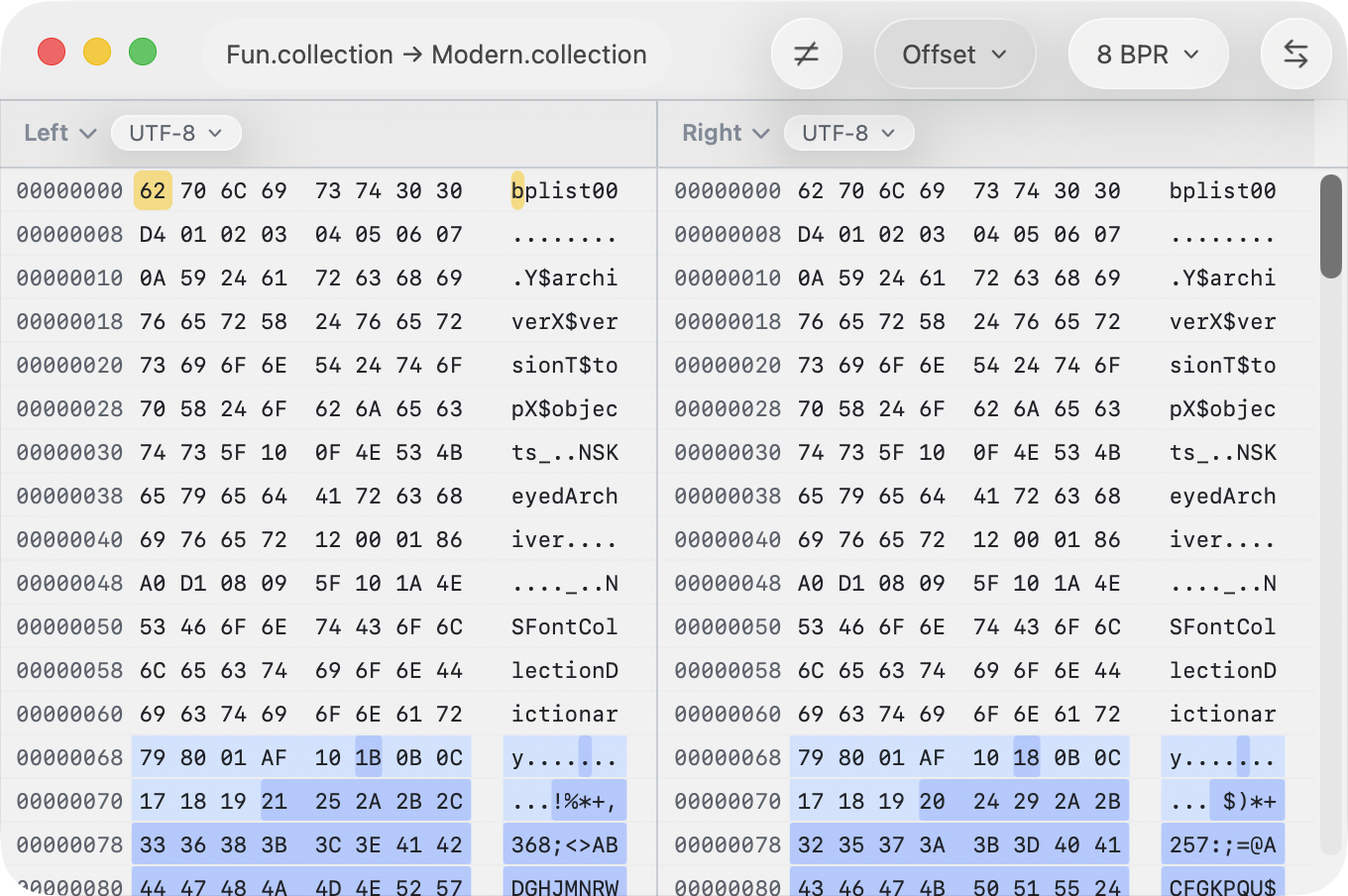
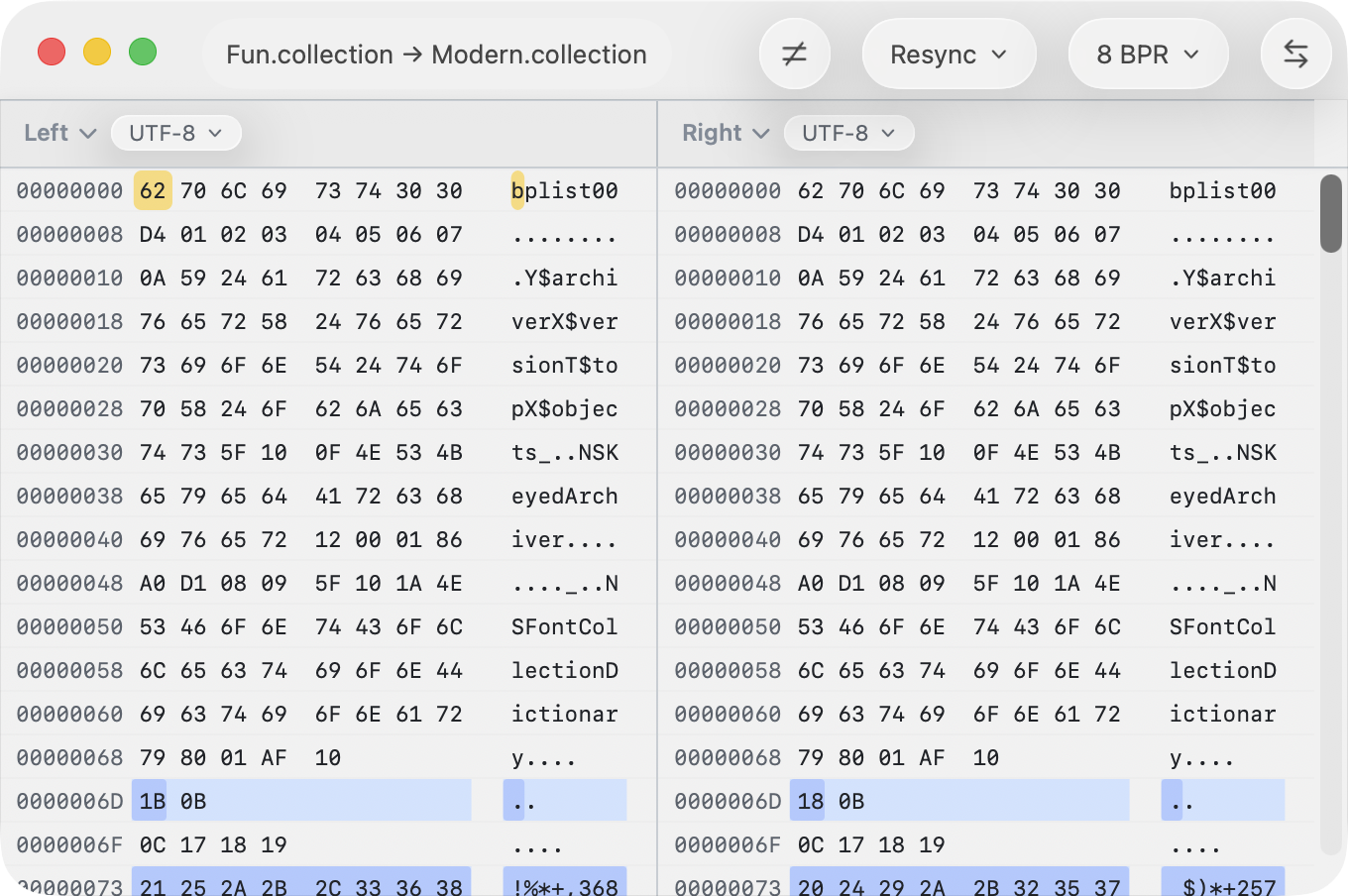
Hex comparison has two alignment layouts:
- Offset is the default. It compares byte
non the left to bytenon the right. - Resync is an analysis mode. It tries to recover alignment after insertions or deletions so later matching regions can line up again.
Resync is useful when one shifted region would otherwise make the rest of the file appear changed. In Resync, the same horizontal row does not always mean the same absolute offset on both sides. When aligned regions come from different raw positions, ABDiff shows different left and right offsets on purpose.
Hex and Structure
Raw Hex mode shows offsets, hexadecimal bytes, and a decoded text preview. The encoding control affects only that text preview; the raw bytes remain the source of truth.
When ABDiff recognizes a binary format, it adds a Hex / Structure control. Structure mode shows format elements as a tree with element names, offsets, lengths, decoded values, and parser diagnostics. Selecting a structure row selects the matching byte range. Double-clicking a structure row switches back to Hex mode and reveals that range.
In the single-file hex viewer, a supported file can show the structure tree beside the hex bytes. Unsupported files use the full width for raw hex. In a two-file hex diff, Structure mode is available when at least one side is recognized, and Show only differences applies to structure rows as well as raw hex rows.
Format-specific fields may determine details such as byte order or text decoding for that field. For example, ZIP structure fields are parsed according to ZIP rules, while the hex text preview can still be changed with the encoding control.
Supported structure formats include:
- Archives: 7z, GZIP, RAR, TAR, ZIP.
- Apple and structured data: Apple binary plist, Apple bookmark, BSON, MessagePack.
- Certificates and security containers: CMS, DER, PEM, PKCS#12.
- Images, audio, video, color, and 3D containers: CUBE LUT, FLAC, GIF, GLB, HEIF / HEIC, JPEG, MIDI, MP3, MP4 / MOV, PNG, TIFF, WAV, WebP.
- Executables and object files: ELF, Mach-O, PE/COFF.
- Databases and network captures: PCAP, PCAPNG, SQLite, SQLite rollback journal, SQLite WAL.
Some formats that normally open in another viewer can still be inspected as structure by forcing hex. For example, GIF, TIFF, and WebP normally open as image comparisons, and PEM normally opens as text.
View Options
In the hex view, use the View menu or the toolbar controls to adjust the presentation:
- Show only differences hides equal rows so you can focus on changed regions. This is only a visibility filter; it does not change the comparison mode.
- Comparison Alignment lets you switch between Offset and Resync.
- Bytes Per Row changes how many bytes are wrapped onto each row: 8, 16, or 32.
- Swap Left and Right flips left and right when two files are loaded.
Changing Bytes Per Row does not change the underlying diff result.
Inspect Bytes
Click a byte to select it. Shift-click or use Shift with the arrow keys to extend the selection. In the single-file view, the bottom inspector shows the selected offset, length, matching structure element, and a value preview.
Use the value menu or right-click Copy as to inspect or copy the selected bytes as:
- spaced hex or continuous hex
- binary, Base64, C array, or Swift array
- ASCII or supported Unicode and legacy text encodings when the bytes decode cleanly
- integers and floating-point values when the selection length matches the value size
- GUID when 16 bytes are selected
The LE / BE control sets little-endian or big-endian interpretation for multi-byte numbers. When a parsed structure fixes byte order, ABDiff shows that byte order and disables manual changes.
Use the file-info pill at the top left to open summary metadata. In structured files, the same popover includes parser metadata such as container summaries and format-specific facts that are not tied to one byte range.
Find and Go To
Use Edit ▸ Find… to search the active binary
surface. In Hex view, Find is smart about byte searches: valid hex
syntax such as 1F 8B, 0x1F8B, or
1f-8b searches raw bytes, while text such as
Papyrus searches the same bytes as UTF-8 without changing
modes. Hex-like input that cannot describe complete bytes still reports
an invalid search instead of guessing.
In Structure view, Find automatically matches parsed structure names and values. There is no search mode picker; the active view determines the search target.
Use Navigate ▸ Go to Offset… to jump to a byte
offset. Offsets are hexadecimal by default; use 0x for
explicit hexadecimal, d: for decimal, or + /
- for a relative offset from the selected byte.
Histogram and Entropy
Use the histogram button in the toolbar to inspect byte distribution, entropy, top byte values, and broad classifications such as high entropy or padding-heavy data. The panel can switch from the distribution chart to Byte types, which shows control, whitespace, digit, letter, punctuation, and extended-byte makeup across the selected range. In the single-file hex view, the histogram panel can also show an Entropy map strip beside the hex rows for quick navigation through the file.
Read-Only Behavior
Hex data comparison is read-only:
- It does not expose text editing commands.
- It does not support Save or Save as Patch.
- The decoded text column and structure tree are inspection aids; raw bytes are the source of truth for the comparison.
Keyboard Cheatsheet
| Action | Shortcut |
|---|---|
| Move selection left | ← |
| Move selection right | → |
| Move selection up or down | ↑ / ↓ |
| Extend byte selection | ⇧ plus arrow keys |
| Switch to other pane | ⇥ |
| Move focus back from right pane or structure | ⇧⇥ |
| Expand selected structure row | → |
| Collapse selected structure row | ← |